How to connect Assumelist to Follow Up Boss

Modified on Tue, 10 Feb at 6:15 AM

Why Connect Follow Up Boss (FUB) with AssumeList?

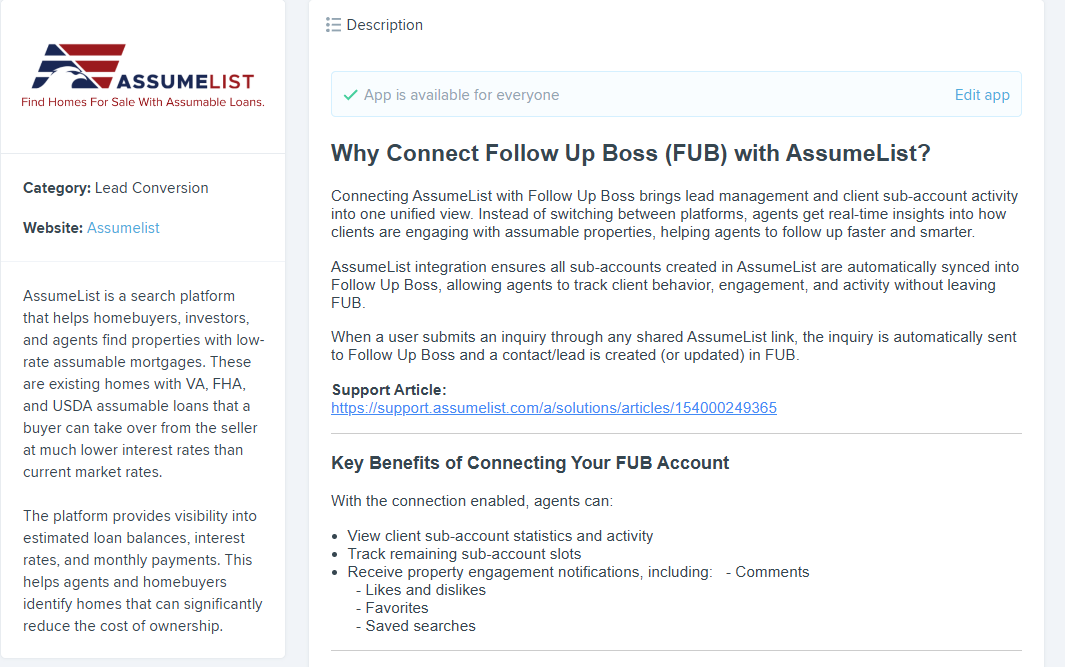
Connecting AssumeList with Follow Up Boss brings lead management and subaccount activity into one unified view. Instead of switching between platforms, agents get real-time insight into how subaccounts are engaging with properties—helping them follow up faster and smarter.

Key Benefits of Connecting Your FUB Account

With the connection enabled, agents can:

  • View subaccount statistics and activity

  • See active subaccounts and account limits

  • Track remaining subaccount slots

  • Receive property engagement notifications, including:

    • Comments

    • Likes and dislikes

    • Favorites

    • Saved searches

    • Most viewed properties

Subaccount names are clickable and redirect directly to their AssumeList profiles.

If no subaccounts exist, the embedded app displays “No results found.”

Better Insight, Smarter Follow-Ups

Instead of seeing only contact details, agents gain visibility into real behavior:

  • Which properties subaccounts view most

  • What they save or favorite

  • Searches they perform

  • Engagement frequency and interest level

This allows agents to prioritize active subaccounts, start more relevant conversations, and follow up at the right time—improving conversion chances.

What the API Connection Enables

The API key securely links AssumeList and FUB, allowing:

  • Account verification

  • Data syncing between platforms

  • Access to subaccount activity and stats

Without the API connection, the two systems cannot share data.

Pixel vs. No Pixel Tracking

With the AssumeList Pixel installed, agents can access deeper engagement insights, such as:

  • Exact properties viewed and time spent

  • Interaction frequency and timing

  • Active saved searches

  • How subaccounts engage with notifications

Without the Pixel, only high-level activity (likes, comments, basic actions) is available through the API.


Feature

API Only

API + Pixel

Account connection

Subaccount stats

Notifications (likes, saves, comments)

Detailed tracking of user activity

In-depth user activity analysis

Pixel = deeper tracking.
API = system connection.


How to Connect Your AssumeList Account with Your FUB Account

This guide explains how to link your AssumeList account with your Follow Up Boss (FUB) account so your data, activity, and subaccount insights stay connected.

Step 1: Make Sure You Have a FUB Account

Before connecting:

  • If you already have a FUB account → great, move to Step 2.

  • If you don’t have a FUB account, first create one at Follow Up Boss.

Step 2: Open FUB Settings in AssumeList

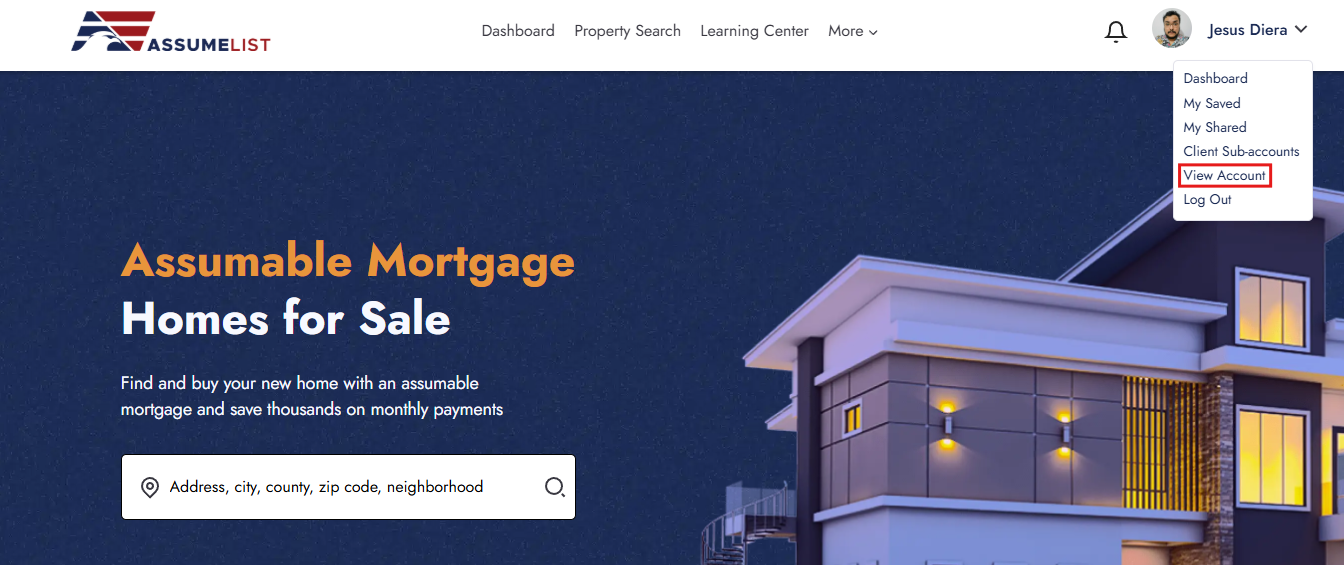
  1. Log in to your AssumeList account.

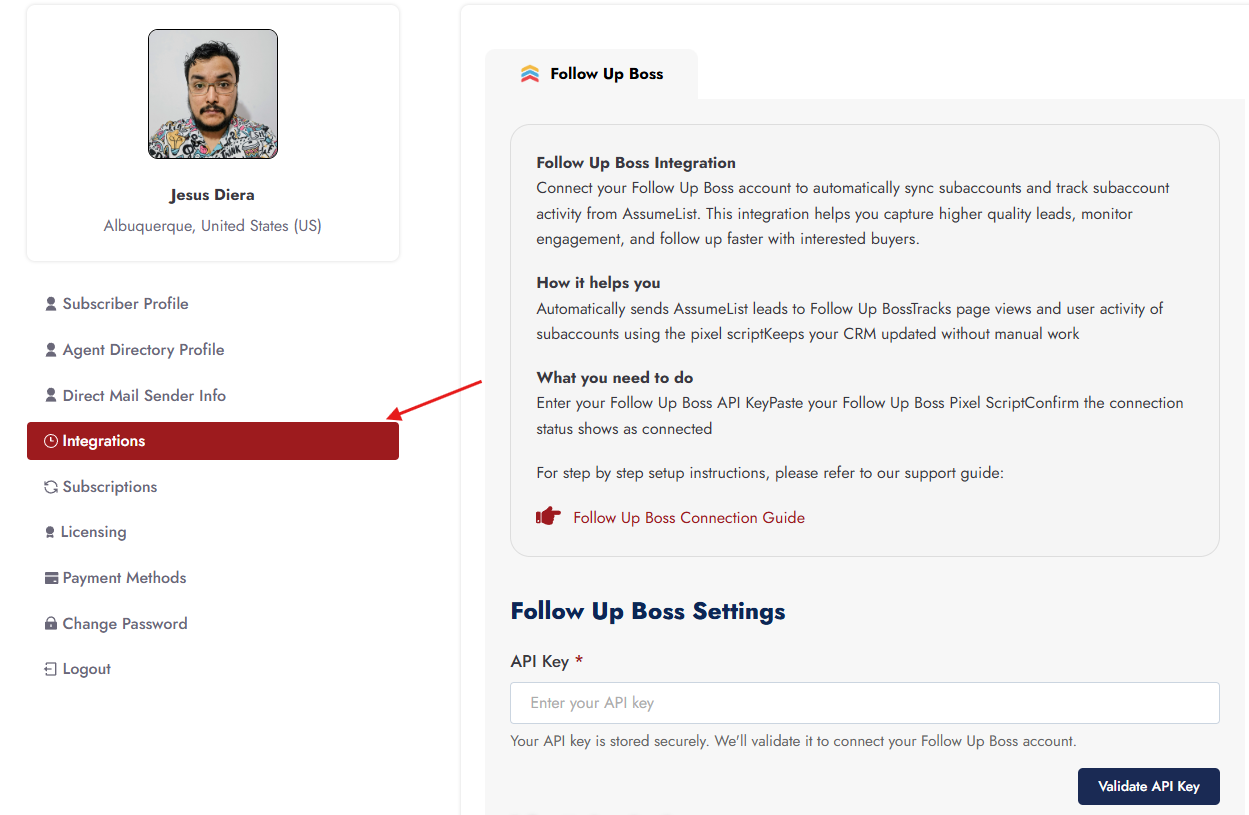
  2. Go to My Account.

  3. Click on the FUB Settings tab.

  4. A form will open with 3 fields:

    • FUB Email

    • FUB API Key

    • Pixel Script

Keep this page open — you will fill it in the next steps.


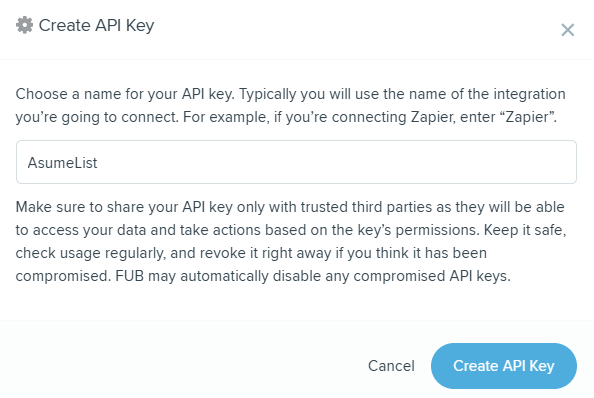
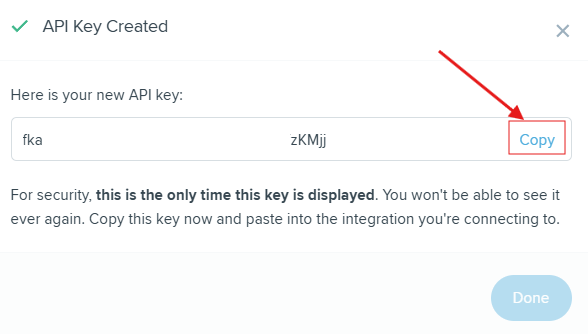
Step 3: Generate Your FUB API Key

Now go to Follow Up Boss (FUB):

  1. Log in to your FUB account.

  2. Go to the Admin tab.

  3. Select API.

  4. Click “Generate API Key.”

  5. Copy the API Key.


Step 4: Add Email & API Key in AssumeList

Return to the AssumeList → FUB Settings form.

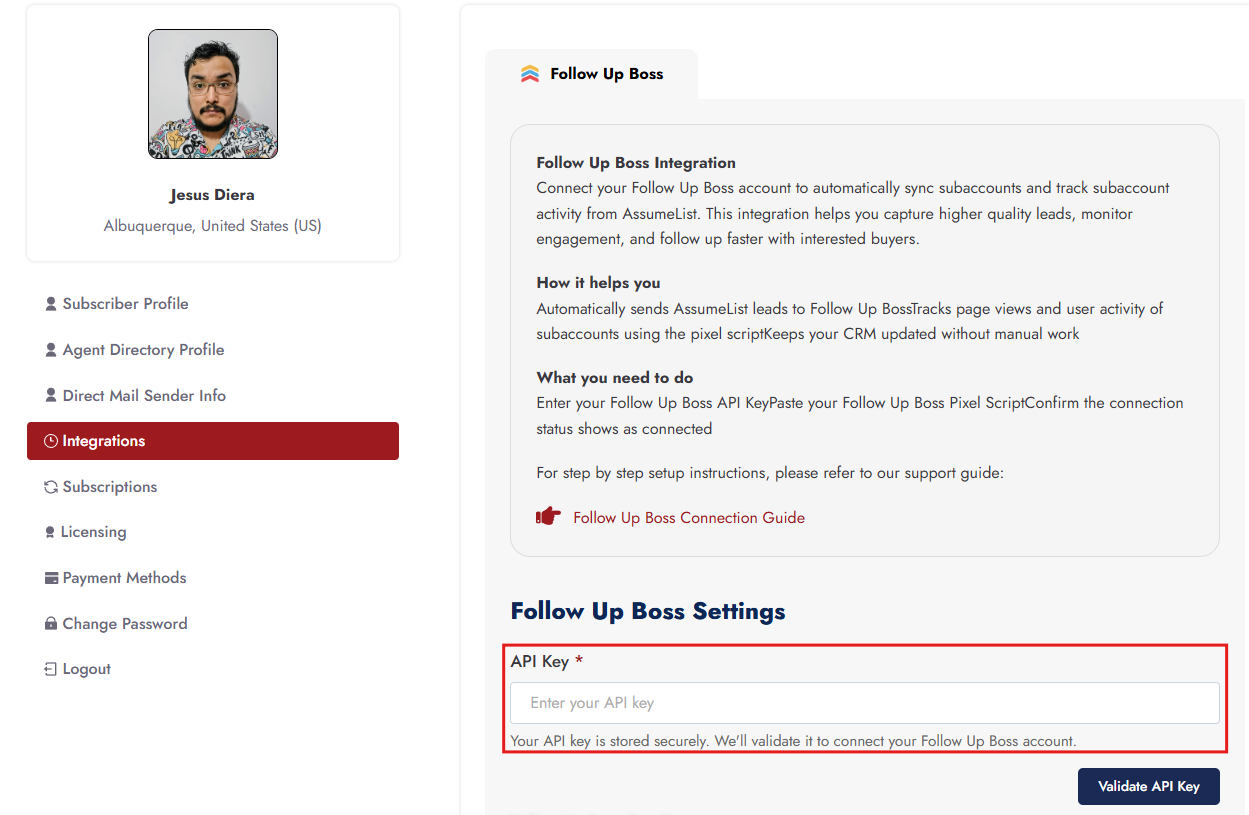
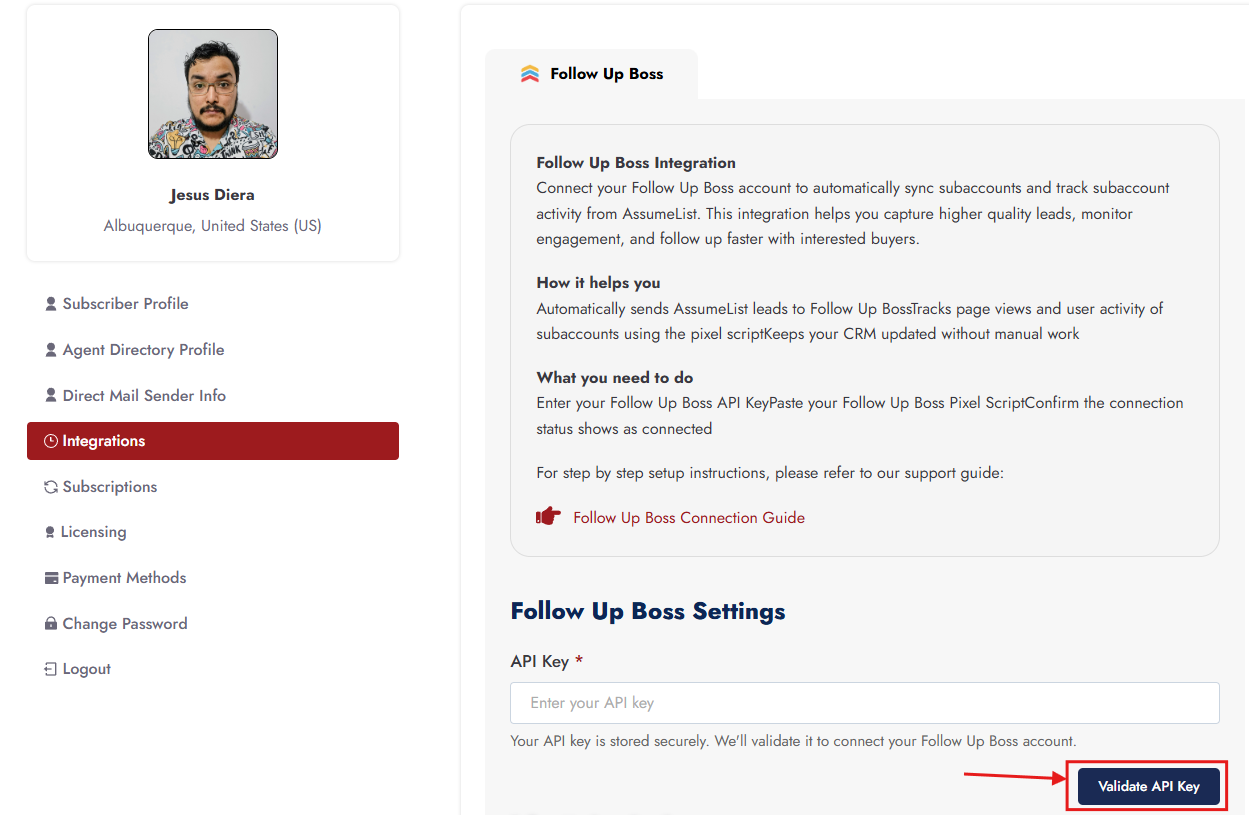
  1. In FUB API Key → paste the API key you copied from FUB.

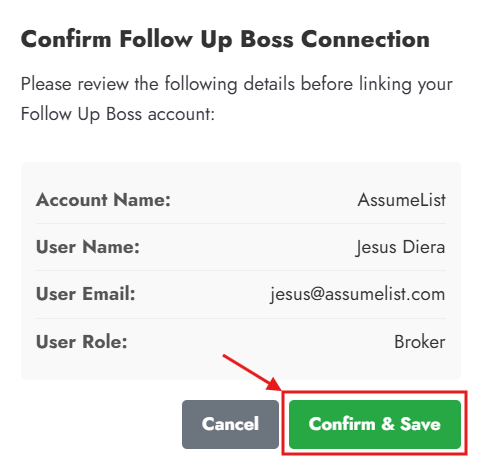
  2. After entering the API key, a popup will appear showing the connected FUB account details, such as:

    • Name

    • Phone number

    • Email address

  3. Click Link Account in the popup.

  4. The system will automatically fetch and fill in the FUB Email field based on the connected FUB account.

You do not need to type the email manually — it is auto-filled after successful API verification.


Step 5: Copy the Pixel Code from FUB

Now again in FUB:

  1. Go to Admin.

  2. Select Integration.

  3. Open the Pixel tab.

  4. Go to Tracking.

  5. Click “Copy Code.


Step 6: Add Pixel Script in AssumeList

Go back to AssumeList → FUB Settings:

  • Paste the copied code into the Pixel Script field.

  • Click on update pixel script

 Your AssumeList account is now connected with FUB.

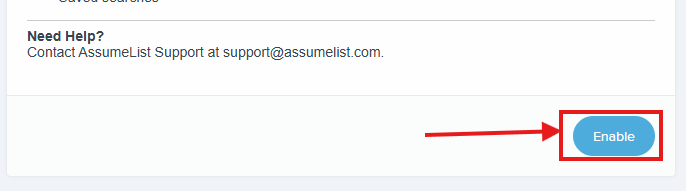
Step 7: Enable AssumeList Inside FUB

Final step inside FUB:

  1. Go to Admin.

  2. Select Integration.

  3. Scroll down.

  4. Find AssumeList App.

  5. Enable it.


Was this article helpful?

That’s Great!

Thank you for your feedback

Sorry! We couldn't be helpful

Thank you for your feedback

Let us know how can we improve this article!

Select at least one of the reasons
CAPTCHA verification is required.

Feedback sent

We appreciate your effort and will try to fix the article